Image Credentials Management
Image credentials in Edgehog provide authentication for pulling container images from private registries. Edgehog's credential system maps directly to the Docker Engine API authentication mechanism, following the Docker authentication specification.
Overview
Image credentials allow devices to authenticate against container registries when pulling images. Key characteristics:
- Not stored on the device: Credentials are managed centrally in Edgehog and sent to the device only when needed
- Contextually transmitted: Credentials are forwarded to the device during container creation
- Docker-compatible format: Credentials follow the Docker Engine API authentication format
- Secure transmission: Credentials are securely stored in Edgehog and transmitted to devices as needed
Credential Components
Each credential in Edgehog consists of the following fields:
Label
A user defined identifier for the credential. This helps administrators organize and select credentials in the Edgehog UI and API.
Examples:
Production Docker HubGitHub Container RegistryInternal Registry - DevAWS ECR
The label is not sent to the device, it's used only for management purposes within Edgehog.
Username
The username for authenticating to the container registry.
Examples:
- Docker Hub: Your Docker Hub username (e.g.,
myusername) - GitHub Container Registry: Your GitHub username
- Private registry: The username configured in your registry
- AWS ECR:
AWS(when using an access key)
Password
The password or access token for authenticating to the container registry.
When using personal access tokens (PATs) or other token-based authentication, enter the token in the password field, just as you would when using docker login.
Examples:
- Docker Hub: Your Docker Hub personal access token (recommended) or password
- GitHub Container Registry: A personal access token (PAT) with
read:packagesscope - Private registry: The password configured in your registry
- AWS ECR: The access token obtained from
aws ecr get-login-password
Security Best Practice: Use personal access tokens instead of passwords when supported by the registry. Tokens can be scoped with limited permissions and are easier to rotate. See the Docker documentation on access tokens for more information.
Creating Image Credentials
To create image credentials in Edgehog:
- Navigate to the Image Credentials section in the Edgehog web interface
- Click the Create Image Credentials action button
- Fill in the credential form:
- Label: Enter a descriptive name for easy identification
- Username: Provide the registry username
- Password: Provide the registry password or token
- Click Save to store the credentials
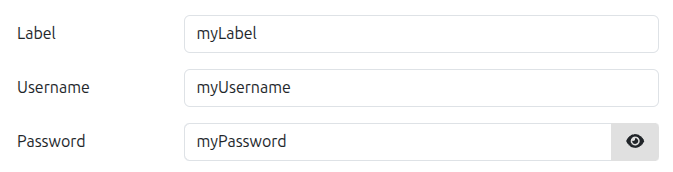
Important: Credentials cannot be modified after creation. If you need to change a username or password, you must delete the existing credential and create a new one.
Using Image Credentials
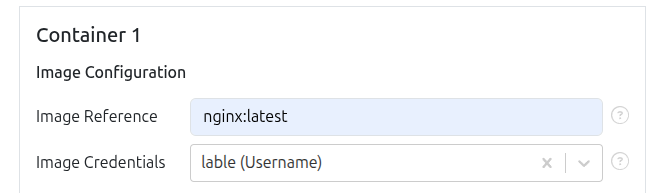
Image credentials are associated with container images during the container creation process within application management.
Associating Credentials with a Container
When creating a container in a release:
- Navigate to the container creation step in the release workflow
- Select the image that requires authentication
- Choose the appropriate credentials from the dropdown list
- Complete the container configuration
Supported Registry Types
Image credentials work with any Docker-compatible container registry, including:
- Docker Hub: Public and private repositories
- GitHub Container Registry (ghcr.io): GitHub packages
- AWS Elastic Container Registry (ECR): Amazon's container registry
- Azure Container Registry (ACR): Microsoft's container registry
- Google Container Registry (GCR): Google Cloud's container registry
- Self-hosted registries: Any private Docker Registry v2-compatible server
- Harbor: Open-source cloud-native registry
- Quay.io: Red Hat's container registry
Examples
Docker Hub Private Repository
Label: Docker Hub Production
Username: mycompany
Password: dckr_pat_abc123def456ghi789
GitHub Container Registry
Label: GitHub Packages
Username: myorganization
Password: ghp_abcdefghijklmnopqrstuvwxyz123456
Self-Hosted Registry with Basic Auth
Label: Internal Registry
Username: registry-admin
Password: s3cureP@ssw0rd
AWS ECR
Label: AWS ECR Production
Username: AWS
Password: eyJwYXlsb2FkIjoiZX... (token from aws ecr get-login-password)
Security Considerations
- Credential rotation: Since credentials cannot be updated after creation, plan for regular rotation by creating new credentials and updating references before deleting old ones
- Token-based authentication: Prefer using access tokens over passwords when supported by the registry
- Least privilege: Grant only the necessary permissions (e.g., read-only access for pulling images)
- Secure storage: Credentials are encrypted at rest in Edgehog
- Audit trail: Track which credentials are used for which containers
- Token expiration: Be aware that some tokens (e.g., AWS ECR) expire periodically and will require creating new credentials
Managing Existing Credentials
Viewing Credentials
The image credentials list displays:
- Label
- Username

Passwords are never displayed after creation for security reasons.
Rotating Credentials
Credentials cannot be updated once created. To rotate credentials (e.g., due to password expiration or security policy):
- Create a new credential with the updated username and/or password
- Update references: Create new releases that reference the new credential instead of the old one
Important: Deleting credentials that are still referenced by active releases will not affect containers that have already pulled their images. However, any future operations requiring image pulls (such as redeploying or updating containers) will fail if the referenced credentials no longer exist.