Deployment Campaigns
Deployment Campaigns are the primary mechanism for managing container operations across multiple devices in Edgehog. A Deployment Campaign tracks the execution of a specific operation on all devices belonging to a Channel, allowing you to deploy, upgrade, start, stop, or delete applications across your device fleet in a controlled manner.
Unlike manual deployment operations which target individual devices, Deployment Campaigns provide automated rollout capabilities with configurable failure thresholds, retry mechanisms, and concurrent operation limits.
The following sections will illustrate all the pages that can be used to list, create and view Deployment Campaigns.
Deployment Campaign List

In the Deployment Campaign list you can see the table with all Deployment Campaigns. Clicking on the name brings to the Deployment Campaign page.
Clicking on the "Create Campaign" button in the top right brings to Create Campaign page.
Create Deployment Campaign
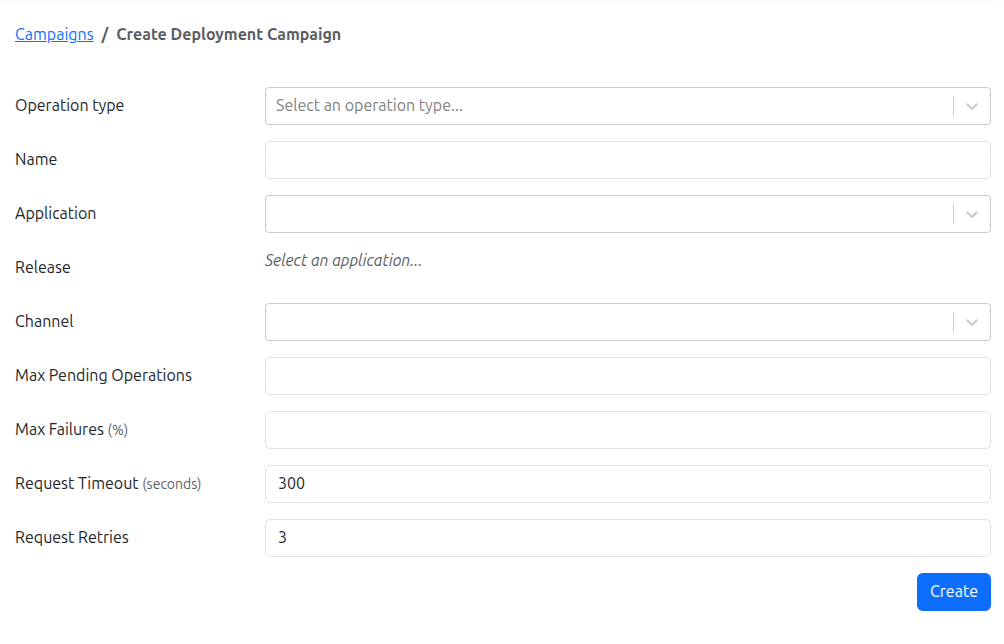
The Create Deployment Campaign page allows creating a new Deployment Campaign.
When creating a Deployment Campaign, the following information must be provided:
- Campaign Name: A descriptive name to identify the campaign.
- Operation Type: The type of operation to perform (see Operation Types for details).
- Application: The application whose release will be operated on.
- Release: The target release to deploy or operate on.
- Target Release (
upgradeonly): The new release version to upgrade to. - Channel: The target Channel for the Deployment Campaign. All devices in this channel will be targeted.
- Deployment Mechanism properties.
The Deployment Campaign information can be provided using the form, and pressing the "Create" button saves the Deployment Campaign.
Once created, the Deployment Campaign will start executing operations towards the devices, and its progress can be checked from the Edgehog Dashboard or through Edgehog GraphQL API.
Note that the campaign will "snapshot" the Devices belonging to the Channel when it's started, and will target only those. If additional Devices are added to the Channel after the Deployment Campaign is created, they won't be included in this campaign and will require a separate campaign to be started.
Operation Types
Deployment Campaigns support five different operation types, each serving a specific purpose in managing containerized applications on your device fleet:
- Deploy: Installs a new application release to devices that don't currently have it deployed.
- Upgrade: Transitions devices from one release version to another within the same application. The old deployment remains on the device after upgrade.
- Start: Starts containers for deployments of that application release.
- Stop: Halts running containers without removing the deployment from the device.
- Delete: Completely removes a deployment and all its associated containers from devices. This operation is destructive and cannot be undone.
Deployment Mechanism
The Deployment Mechanism controls how the campaign executes operations across your device fleet. Currently, Edgehog supports the Lazy deployment mechanism.
Lazy Deployment Mechanism
The Lazy mechanism executes operations gradually, controlling the number of concurrent operations and handling failures gracefully.
The properties of this Deployment Mechanism are:
- Max Failure Percentage: the maximum percentage of failures allowed over the number of total targets. If the failures exceed this threshold, the Deployment Campaign terminates with a failure.
- Max In-Progress Deployments: the maximum number of concurrent operations. The Deployment Campaign will have at most this number of operations that are started but not yet finished (either successfully or not).
- Create Request Retries: the number of times an operation must be retried on a specific Device before considering it a failure. Note that the operation is retried only if the request doesn't get acknowledged from the device.
- Request Timeout: the timeout (in seconds) to wait before considering a request lost (and possibly retry).
Deployment Campaign
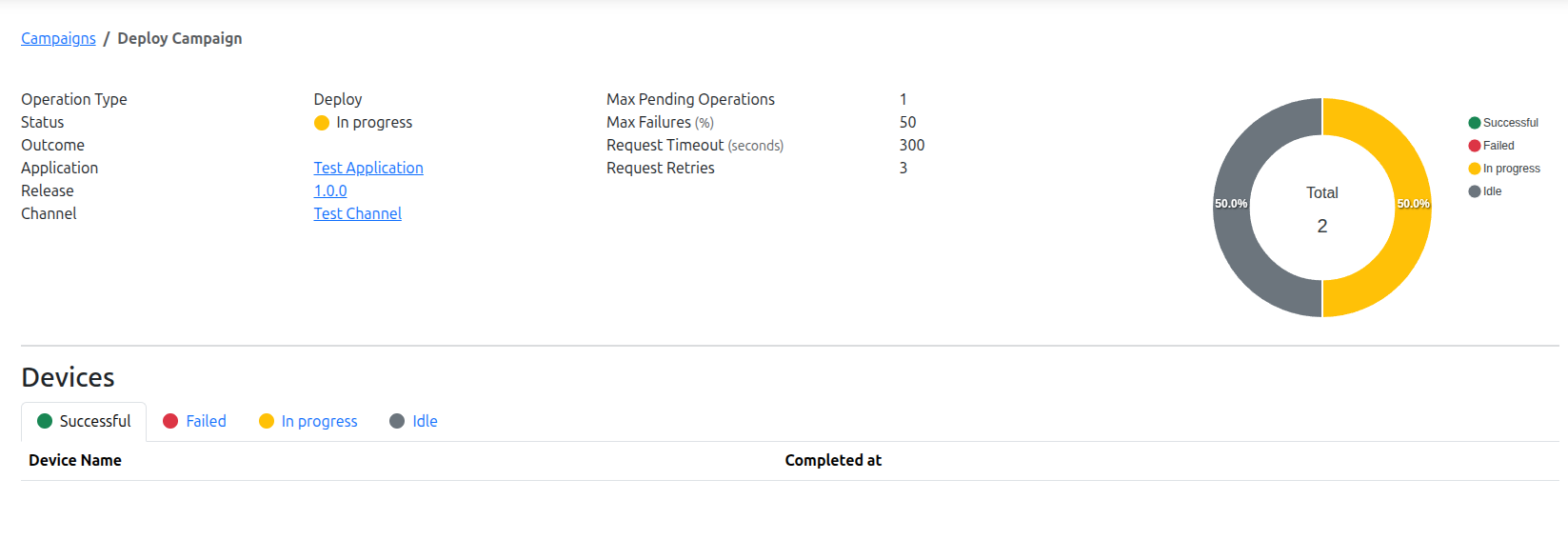
The Deployment Campaign page shows the information about a specific Deployment Campaign and Devices associated with it.
Clicking on the Application, Release, Channel, or Device name brings to the corresponding page.